Using mipmaps
Use mipmaps to create a set of downscaled sublevels from a large texture. Mipmaps increase the GPU memory use by one third, but improve the performance when the full texture does not have to be sampled. Use mipmaps to improve the performance whenever you scale a textured node.
For example, a 256 by 256 pixels texture has mipmap levels that reduce the texture to 128 by 128, 64 by 64, and so on until 1 by 1 pixel. The performance improves because smaller mipmap levels fit better in the fixed-size texture cache in the GPU.
When you create mipmaps in a third-party tool and include them in a .dds file, Kanzi Studio extracts the images for mipmap levels and uses them.
Avoid creating mipmaps from .jpeg textures, because the .jpeg image format causes the quality of the mipmaps to degrade.
Generating mipmaps for a texture
When you import an image that does not contain mipmaps, you can generate the mipmaps for the texture from that image in Kanzi Studio.
To generate mipmaps for a texture:
- In the Library select Resource Files > Images, and select the image for which you want to create mipmaps.
Avoid creating mipmaps from .jpeg textures, because the .jpeg image format causes the quality of the mipmaps to degrade.
- In the Properties enable the Generate Mipmaps property.
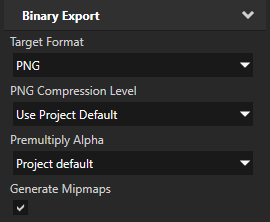
- In the Library right-click the image for which you want to create mipmaps and select Preprocess images.
Kanzi Studio generates mipmaps for the image you selected.
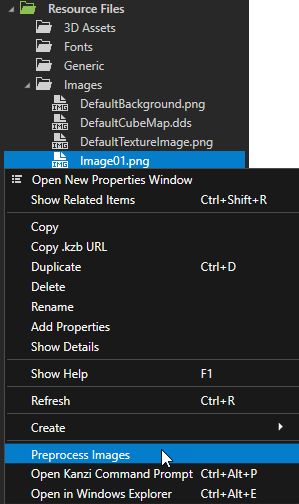
Preprocess the images for which you want to generate mipmaps, because otherwise Kanzi Engine has to create the mipmaps when loading your application, which increases the loading time of your application. Note that Kanzi Engine cannot generate mipmaps for ETC compressed images.
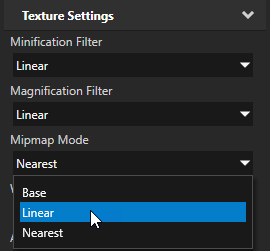
- In the Library > Materials and Textures > Textures select the texture that uses the image for which you generated mipmaps and in the Properties set the Mipmap Mode property either to Linear or Nearest to take the mipmaps into use. See Filtering textures.
Creating mipmaps for a composition target
You can create mipmaps for a composition target when you render 3D content with a Composition Target Render Pass.
This procedure explains how to create mipmaps for a composition target which Kanzi creates automatically. To create mipmaps for a Render Target Texture, see Creating mipmaps for a Render Target Texture.
To create mipmaps for a composition target:
- Create the render passes that you need to render your content to a composition target. See Rendering content to a composition target.
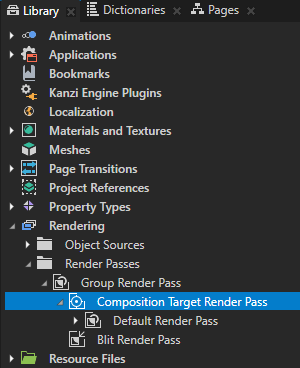
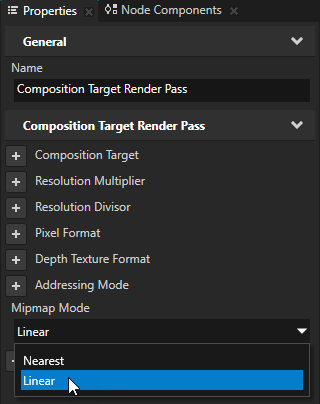
- In the Library > Rendering > Render Passes select the Composition Target Render Pass, in the Properties add the Mipmap Mode property, and set it either to Linear or Nearest. See Filtering textures.
Kanzi generates the mipmaps when you render the composition target.
Creating mipmaps for a Render Target Texture
You can create mipmaps for a Render Target Texture to which you render 3D content with a Composition Target Render Pass.
To create mipmaps for a Render Target Texture:
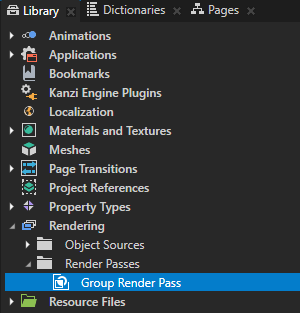
- In the Library > Rendering > Render Passes create a Group Render Pass.
Group Render Pass allows you to collect render passes so that you can refer to a single render pass in your Scene or Viewport 2D node.
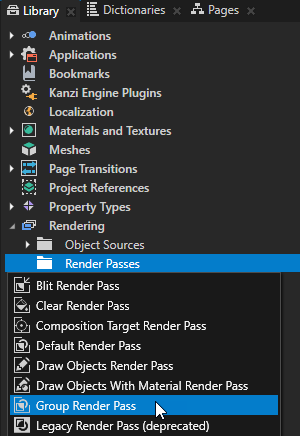
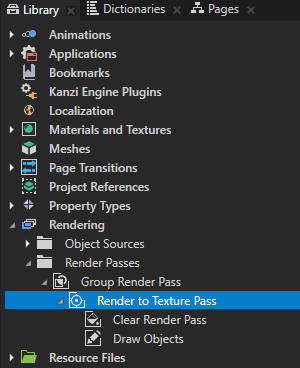
- In the Group Render Pass create a Render to Texture Pass.
Render to Texture Pass creates the render passes and Render Target Texture you need to render to a texture. See Rendering to texture.
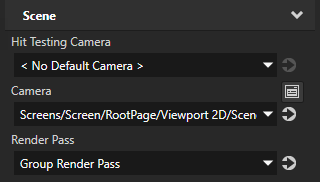
- In the Project select the Scene node the content of which you want to render to a texture and in the Properties set the Render Pass property to the Group Render Pass you created in the first step of this procedure.
Kanzi now renders the Scene using the render passes you created.
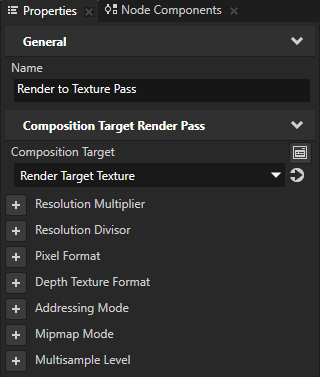
- In the Library select the Render to Texture Pass that you created, in the Properties click
 next to the Composition Target property to go to the Render Target Texture resource, and set the Mipmap Mode property to either Linear or Nearest. See Filtering textures.
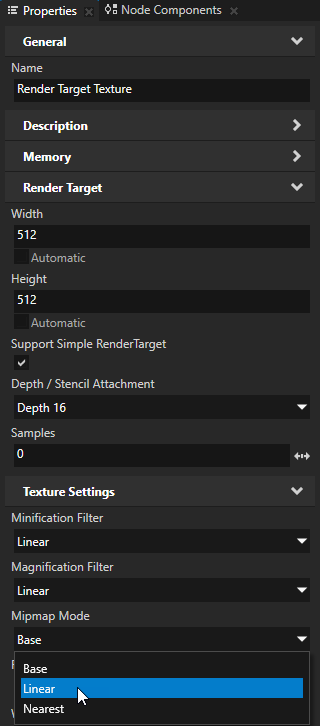
- To generate the mipmaps, use the Render to Texture Pass which renders to the Render Target Texture for which you enabled mipmaps.
For example, in the Group Render Pass that you created in the first step of this procedure, create a Material Setup Render Pass, in the Properties add the Texture property, and set it to the Render to Texture Pass that you created.
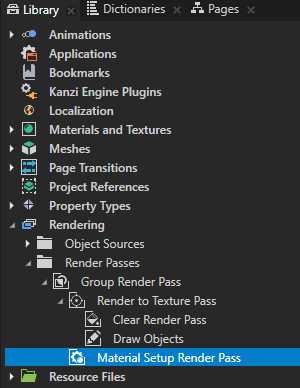
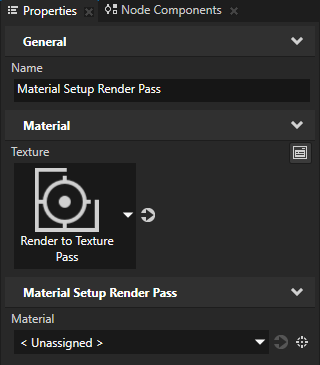
- Use the Render Target Texture in a node where you want to show the 3D content. See Using render target textures.
Creating custom mipmap levels for a Render Target Texture
When you use a Render Target Texture on 3D geometry, you can use Legacy Render Pass (deprecated) resources to create custom mipmap levels for the Render Target Texture.
To create custom mipmap levels for a Render Target Texture:
- In the Library > Materials and Textures > Textures select the Render Target Texture for which you want to generate mipmaps, and in the Properties set the Mipmap Mode property to either Linear or Nearest. See Filtering textures.
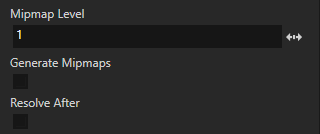
- To create a custom mipmap for each mipmap level, in the Library > Rendering > Render Passes create one Legacy Render Pass (deprecated) for each mipmap level, and set the Mipmap Level property to the mipmap level in which you want to use the result of that Legacy Render Pass (deprecated).
For example, if your Render Target Texture measures 512 by 512 pixels, to create all mipmap levels you need ten Legacy Render Pass (deprecated) render passes. For the Legacy Render Pass (deprecated) that renders the mipmap the size of the texture set the Mipmap Level property to 0, for the Legacy Render Pass (deprecated) that renders the next mipmap level (256 by 256 pixels) set the Mipmap Level property to 1, and so on until the mipmap texture that measures 1 by 1 pixel.
See also
Adjusting the data size
Loading resources in parallel
Compressing textures
Filtering textures
Troubleshooting the performance of your application
Images and textures best practices
Best practices
Rendering content to a composition target

Open topic with navigation